7 Smart TV Fixes Every American Streamer Needs to Know
Struggling with buffering, app crashes, or unresponsive controls on your Smart TV? As an American streamer, you don't have to endure frustrating interruptions. This guide uncovers 7 essential fixes tailored to common issues like internet connectivity problems, app performance glitches, and privacy settings. Learn how to optimize picture and sound, manage software updates, and free up storage for a seamless viewing experience. Master these proactive solutions to keep your Smart TV running flawlessly, ensuring every binge-watching session is smooth and enjoyable without downtime. Empower yourself with simple, effective steps to transform your streaming setup today!
7 Smart TV Fixes Every American Streamer Needs to Know
In today's streaming era, Smart TVs serve as vital entertainment hubs, yet they frequently require troubleshooting to maintain smooth binge-watching sessions. As an American streamer, you may encounter disruptions such as buffering, app crashes, or unresponsive controls, often caused by factors like internet instability, outdated software, or hardware misconfigurations. By proactively addressing these common issues, you can minimize downtime and enjoy uninterrupted viewing. This guide outlines seven key fixes to enhance your experience, ensuring your Smart TV operates reliably for all your favorite shows and movies.
Fix 1: Internet Connectivity Issues
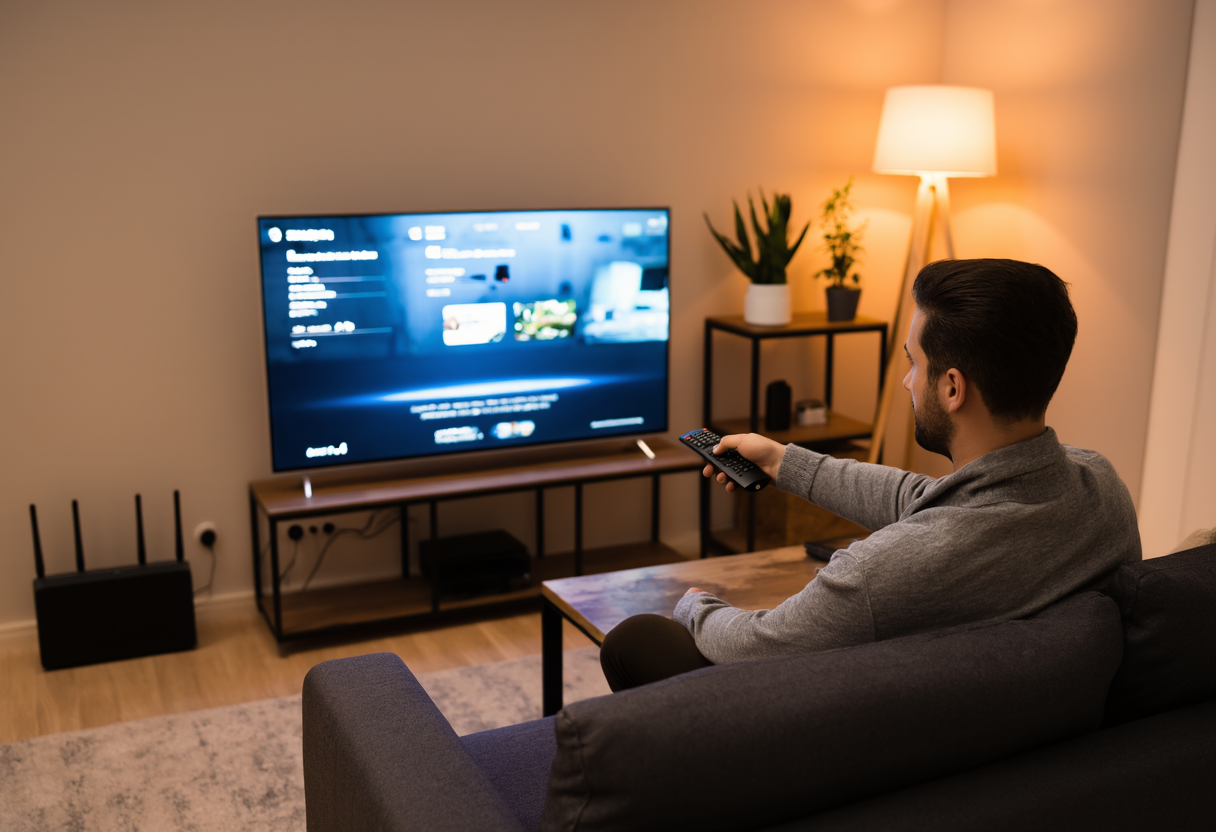
Diagnosing internet connection failures is crucial for resolving streaming interruptions, as a strong connection forms the backbone of your Smart TV experience. Start by checking your router's placement: position it within 10-15 feet of your TV, away from obstructions like walls or other electronics, to ensure an optimal signal. This adjustment can prevent dropouts during high-definition streams. Additionally, compare wired versus wireless speeds using your TV's built-in speed test tool; Ethernet connections often provide faster, more stable performance than Wi-Fi, which may fluctuate due to interference.
To maintain peak performance, regularly update your router firmware by logging into the admin page monthly—this installs patches that fix bugs and enhance security, safeguarding your streaming sessions.
Fix 2: App Crash Resolutions
App crashes and freezes can disrupt your viewing if ignored, but maintaining app performance is straightforward with a few essential tricks. Begin by force-stopping problematic apps: access your TV's app manager, select the app, and choose 'force stop' to clear temporary glitches before relaunching it.
- Clear app cache and data regularly by navigating to storage settings, selecting the app, and performing a cache clear—this removes corrupted files without deleting login details, boosting speed and reliability.
- For persistent issues, reinstall apps by uninstalling from the app store, rebooting your TV, and reinstalling a fresh version to eliminate deep-seated errors and ensure access to the latest features.
Fix 3: Remote and Voice Command Fixes
Restoring control functionality is key for seamless navigation, especially with remote and voice command problems. Start by replacing batteries correctly: use fresh, high-quality batteries and ensure proper polarity insertion to prevent common failures.
Re-pair Bluetooth remotes to fix connectivity hiccups—unpair and re-pair via Bluetooth settings while holding the sync button. For voice commands, calibrate microphone sensitivity in your TV's settings to reduce background noise and ensure accurate responses.
Fix 4: Picture and Sound Optimization
Enhance your viewing experience by fine-tuning picture and sound settings for personal preferences. Calibrate HDR settings: increase brightness and contrast for vivid daytime viewing, then lower them at night to reduce eye strain and preserve detail. Adjust motion smoothing to minimize the distracting 'soap opera effect'—disable or lower this in display settings for a more cinematic feel during fast-action scenes.
Match audio output to your soundbar's capabilities by checking settings for formats like Dolby Atmos, optimizing clarity and immersion without distortion.
Fix 5: Software Update Management
Ensuring system stability requires diligent software updates. Enable automatic update checks in your settings to receive patches upon release, preventing bugs that cause crashes or security risks. Manually scan for firmware updates monthly via the system update section, particularly after major app updates, to keep your device running smoothly.
Always perform a full reboot after major updates using the power menu to apply changes completely and avoid performance glitches.
Fix 6: Privacy and Security Settings
Protecting user data starts with disabling ACR (Automatic Content Recognition), which tracks viewing habits for ads—turn it off to limit data sharing. Manage permissions for microphones and cameras by reviewing app access in privacy settings and disabling unused features to prevent unauthorized eavesdropping. Set up guest profiles with restricted data access for visitors to safeguard your main account.
Fix 7: Storage Management Techniques
Prevent system lag by freeing up space through efficient storage management. Uninstall unused apps via the app manager to declutter your system and boost performance for essential streaming apps. For limited internal memory, move apps to external USB storage by connecting a compatible drive and transferring files in settings.
Regularly clear temporary system files using the storage cleanup tool in the maintenance menu to delete cache and logs, maintaining responsiveness during intense streaming sessions.
Adopting a proactive maintenance checklist—such as checking connections, updating software, and reviewing settings—saves headaches. By mastering these seven fixes, you'll keep your Smart TV running flawlessly, turning every streaming moment into a seamless, enjoyable experience for American viewers.