5 Common Smart TV Problems and How to Fix Them Quickly
Facing smart TV troubles? Quickly resolve the top 5 common issues—power failures, network drops, app crashes, poor picture quality, and audio glitches—with easy DIY fixes. Our step-by-step guide empowers you to troubleshoot like a pro, saving time and money. Learn preventative tips for uninterrupted binge-watching and optimized performance. Don't let tech hiccups ruin your entertainment—restore your Smart TV in minutes!
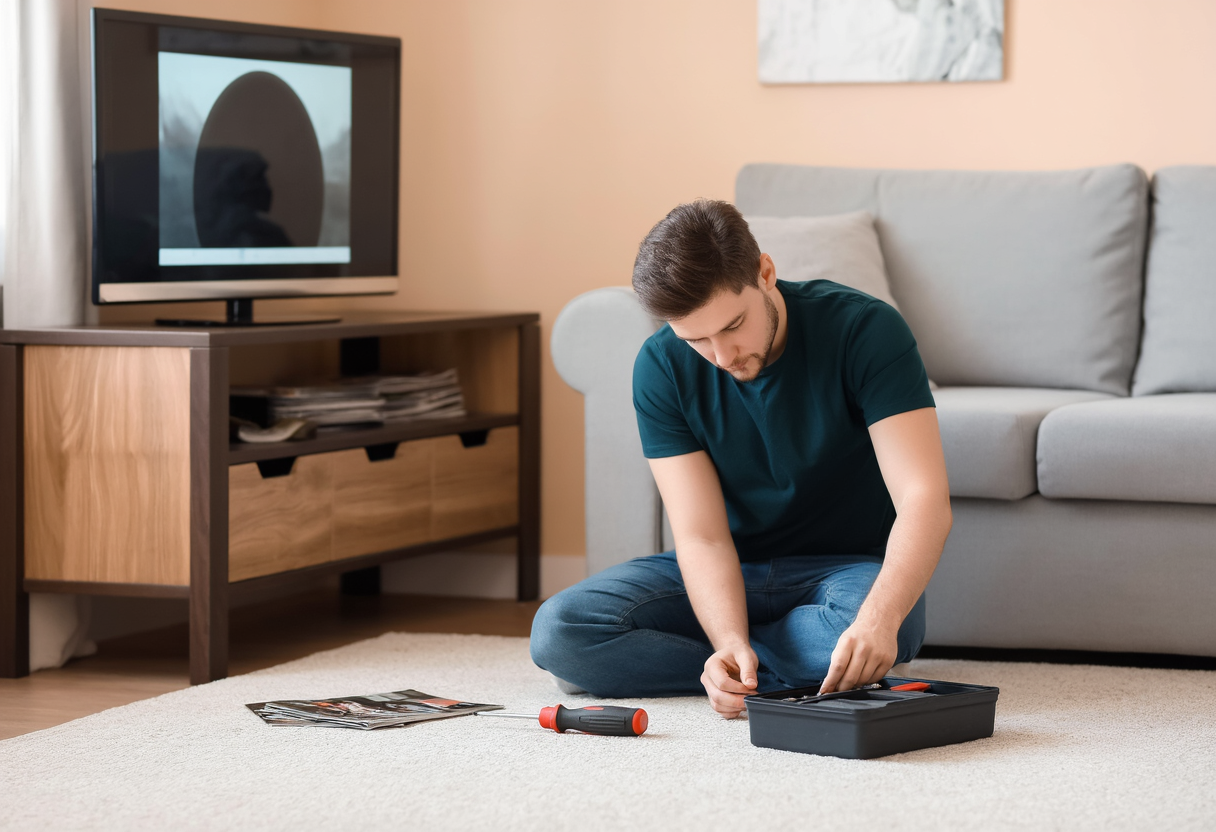
5 Common Smart TV Problems and How to Fix Them Quickly
Smart TVs have revolutionized home entertainment, offering instant access to endless streaming options right at your fingertips. However, these advanced devices often come with quirks and frustrations. According to recent surveys, over 60% of Smart TV owners experience issues like connectivity drops or app crashes within the first year. The good news? Before resorting to costly professional repairs, many problems have simple DIY solutions that can save you time and money—empowering you to take control and enjoy seamless viewing.
By mastering common fixes, you can swiftly tackle Smart TV glitches and transform potential hassles into smooth entertainment experiences. This comprehensive guide walks you through the top five problems, complete with step-by-step solutions and preventative strategies. Familiarize yourself with these insights to keep your device running optimally and ensure uninterrupted fun for years to come.
Problem 1: When Your Smart TV Refuses to Power On
One alarming issue you might face is a blank screen when your Smart TV won't turn on, but this is often easy to diagnose. Start by checking for simple power-related causes, such as damaged cables or loose outlet connections, which can be fixed in moments with a quick unplug and replug.
- Inspect all power sources: Examine cables and outlets for damage or looseness; a simple disconnect and reconnect often restores functionality.
- Test the remote control: Verify dead batteries by using a spare remote or the TV's physical power button—many issues stem from remote mishaps.
- Perform a hard reset: Unplug the TV for 60 seconds, hold the power button for 10 seconds, and reconnect to clear temporary glitches.
- Update the firmware: Navigate to settings to install the latest updates, addressing software bugs that prevent startup and restoring your TV in minutes.
Problem 2: Connectivity and Network Hiccups Disrupt Streaming
Wi-Fi or Ethernet problems can ruin binge-watching with frustrating buffering or sudden disconnections. Resolve weak signals by repositioning your router centrally—away from walls and interference sources like microwaves—to enhance stability.
- Reset network settings: Access your TV's menu, forget the current network, and reconnect by re-entering your password to establish a stable link.
- Switch to wired connections: If wireless falters, use an Ethernet cable for better speed and reliability—ideal for high-demand streaming.
- Update router firmware regularly: Log into the admin panel via the router settings to install updates, preventing compatibility issues and streaming errors proactively.
Key tip: Always position your router in an open, central location—away from dense materials—to maximize signal strength and minimize drops.
Problem 3: App Crashes and Freezing Mid-Show
App crashes during crucial moments, like a show's climax, are incredibly annoying. Clearing the app cache is a swift fix that removes corrupted files and restores smooth performance.
- Clear the app cache: Navigate to app settings, select the problematic app, and clear its cache or data to eliminate corrupted files.
- Reinstall the app: If cache clearing fails, uninstall and reinstall from the app store for a fresh start with updated features.
- Check for system updates: Visit settings to install patches that resolve bugs causing crashes, ensuring long-term app stability.
- Restart the TV: Power off and back on to refresh the operating system and restore app functionality with minimal effort.
Problem 4: Poor Picture or Display Quality Issues
Blurry images or flickering screens can degrade your Smart TV experience. Combat this by adjusting resolution and HDR settings to match your content—for instance, selecting 4K for HD streaming—enhancing visual clarity immediately.
- Calibrate display settings: Use built-in tools or online guides to fine-tune color, brightness, and contrast for an immersive viewing experience.
- Inspect HDMI cables: Replace loose or frayed cables to eliminate display artifacts; testing different inputs helps identify source-related issues.
- Avoid overheating: Dust screens and vents regularly to prevent buildup that causes flickering—a common culprit in poor picture quality.
Problem 5: Audio Problems and Distorted Sound
Sound issues like distorted audio or no volume can ruin your viewing pleasure. Fix these by balancing volume with external speakers or the TV's own audio, ensuring optimal sound output.
- Adjust audio settings: Balance sound levels in settings or test with TV speakers to resolve mismatches with external devices.
- Configure output options: Enable features like Dolby Atmos for richer sound experiences, correcting audio imbalances quickly.
- Check cables and pairings: Inspect all connections and re-pair Bluetooth devices, such as soundbars, to secure links and prevent distortions.
Advanced DIY Troubleshooting Techniques
For stubborn problems that persist, explore deeper fixes as a last resort. A factory reset restores defaults but erases data—ideal for unresolved software issues.
- Perform a factory reset: Access service menu options to wipe all settings, solving persistent glitches at the cost of stored data.
- Use diagnostic tools: Run built-in checks for issues like overheating, identifying hardware faults early to prevent major failures.
- Engage online forums: Tap into community support sites for crowdsourced fixes from fellow Smart TV users facing similar challenges.
Reminder: Document issues with photos before seeking help—this aids technicians and speeds up diagnosis for effective repairs.
When to Seek Professional Help
If DIY efforts fail and signs like dead pixels or power surges persist, consult professionals. Contact the manufacturer for warranty claims or support—especially when dealing with hardware failures.
While professional services may cost more, they offer reliable solutions that prevent long-term headaches. Always maintain clear documentation of issues to streamline the repair process and protect your investment.
Preventive Maintenance for Long-Term Reliability
Avoid future issues with proactive steps for sustained performance. Install surge protectors to guard against power spikes—a common cause of damage—and practice safe habits like proper shutdowns.
- Update software regularly: Ensure security and performance enhancements through frequent firmware updates, accessible via settings.
- Clean your device: Dust the screen and vents often to prevent overheating from buildup, extending lifespan significantly.
- Monitor usage: Adopt habits like turning off the TV properly to avoid stress on components, keeping your Smart TV running smoothly for years.